Linux Network Namespaces
Linux network namespaces
Nulla facilisi. Aenean urna metus, egestas quis mauris non, dignissim vestibulum risus. Mauris posuere nisl a massa commodo rhoncus. Fusce sed euismod dui, eget aliquet sem. Aenean quam est, iaculis quis aliquet at, semper id tellus. Suspendisse fringilla ipsum diam, suscipit commodo neque varius ac. Maecenas commodo orci vitae massa dapibus, interdum ultricies ex scelerisque. Nullam volutpat mollis aliquam. Donec fringilla interdum urna, nec posuere est tincidunt a.
Running different Linux applications through different networks
Assumptions
Linux Distro Configuration Details
$ cat /etc/os-release
PRETTY_NAME="Debian GNU/Linux bullseye/sid"
NAME="Debian GNU/Linux"
ID=debian
HOME_URL="https://www.debian.org/"
SUPPORT_URL="https://www.debian.org/support"
BUG_REPORT_URL="https://bugs.debian.org/"
$ uname -a
Linux desktop-olivier 5.10.0-6-amd64 #1 SMP Debian 5.10.28-1 (2021-04-09) x86_64 GNU/Linux
Setup diagram
As one can see, there is a single computer running Linux Debian "bullseye" which is connected to 2 different ISPs through 2 different routers (an ADSL router and a 4G/LTE router) using 2 different network devices (Ethernet and Wireless LAN). The computer features only one single Ethernet port and one WLAN Network card.
WiFi vs. IEEE802.11
Wi-Fi is a brand name which comes with a specific logo

IEEE802.11 is a technical standard specifying the set of MAC - Media Access Control - and PHY - Physical Layer - protocols for implementing WLAN - Wireless Local Area Network - computer communication.
List of physical network devices attached to the PCI bus
The system features distinct Ethernet and WiFi controllers
$ lspci
00:00.0 Host bridge: Intel Corporation Device 9b43 (rev 05)
[...]
00:14.3 Network controller: Intel Corporation Comet Lake PCH CNVi WiFi
[...]
00:1f.6 Ethernet controller: Intel Corporation Ethernet Connection (11) I219-LM
[...]
Network devices characteristics
Ethernet controller device
$ lspci -s 00:1f.6 -nnk
00:1f.6 Ethernet controller [0200]: Intel Corporation Ethernet Connection (11) I219-LM [8086:0d4c]
        DeviceName: Onboard - Ethernet
        Subsystem: Dell Ethernet Connection (11) I219-LM [1028:098d]
        Kernel driver in use: e1000e
        Kernel modules: e1000e
# modinfo e1000e
filename:       /lib/modules/5.10.0-6-amd64/kernel/drivers/net/ethernet/intel/e1000e/e1000e.ko
license:        GPL v2
description:    Intel(R) PRO/1000 Network Driver
author:         Intel Corporation, <linux.nics@intel.com>
...
WiFi network controller device
$ lspci -s 00:14.3 -nnk
00:14.3 Network controller [0280]: Intel Corporation Comet Lake PCH CNVi WiFi [8086:06f0]
        DeviceName: Onboard - Ethernet
        Subsystem: Intel Corporation Comet Lake PCH CNVi WiFi [8086:4070]
        Kernel driver in use: iwlwifi
        Kernel modules: iwlwifi
# modinfo iwlwifi
filename:       /lib/modules/5.10.0-6-amd64/kernel/drivers/net/wireless/intel/iwlwifi/iwlwifi.ko
license:        GPL
author:         Intel Corporation <linuxwifi@intel.com>
description:    Intel(R) Wireless WiFi driver for Linux
firmware:       iwlwifi-100-5.ucode
firmware:       iwlwifi-1000-5.ucode
firmware:       iwlwifi-135-6.ucode
firmware:       iwlwifi-105-6.ucode
firmware:       iwlwifi-2030-6.ucode
firmware:       iwlwifi-2000-6.ucode
firmware:       iwlwifi-5150-2.ucode
firmware:       iwlwifi-5000-5.ucode
firmware:       iwlwifi-6000g2b-6.ucode
firmware:       iwlwifi-6000g2a-6.ucode
firmware:       iwlwifi-6050-5.ucode
firmware:       iwlwifi-6000-4.ucode
firmware:       iwlwifi-7265D-29.ucode
firmware:       iwlwifi-7265-17.ucode
firmware:       iwlwifi-3168-29.ucode
firmware:       iwlwifi-3160-17.ucode
firmware:       iwlwifi-7260-17.ucode
firmware:       iwlwifi-8265-36.ucode
firmware:       iwlwifi-8000C-36.ucode
firmware:       iwlwifi-9260-th-b0-jf-b0-46.ucode
firmware:       iwlwifi-9000-pu-b0-jf-b0-46.ucode
firmware:       iwlwifi-SoSnj-a0-mr-a0-59.ucode
firmware:       iwlwifi-ma-a0-mr-a0-59.ucode
firmware:       iwlwifi-ma-a0-gf-a0-59.ucode
firmware:       iwlwifi-SoSnj-a0-hr-b0-59.ucode
firmware:       iwlwifi-SoSnj-a0-gf-a0-59.ucode
firmware:       iwlwifi-SoSnj-a0-gf4-a0-59.ucode
firmware:       iwlwifi-ty-a0-gf-a0-59.ucode
firmware:       iwlwifi-so-a0-gf-a0-59.ucode
firmware:       iwlwifi-so-a0-hr-b0-59.ucode
firmware:       iwlwifi-so-a0-jf-b0-59.ucode
firmware:       iwlwifi-cc-a0-59.ucode
firmware:       iwlwifi-QuQnj-b0-jf-b0-59.ucode
firmware:       iwlwifi-QuZ-a0-jf-b0-59.ucode
firmware:       iwlwifi-QuZ-a0-hr-b0-59.ucode
firmware:       iwlwifi-Qu-b0-jf-b0-59.ucode
firmware:       iwlwifi-Qu-c0-hr-b0-59.ucode
firmware:       iwlwifi-QuQnj-b0-hr-b0-59.ucode
firmware:       iwlwifi-Qu-b0-hr-b0-59.ucode
List of network interfaces
$ ls -la /sys/class/net
total 0
drwxr-xr-x  2 root root 0 Apr 24 09:20 .
drwxr-xr-x 65 root root 0 Apr 22 08:58 ..
lrwxrwxrwx  1 root root 0 Apr 24 10:23 eno2 -> ../../devices/pci0000:00/0000:00:1f.6/net/eno2
lrwxrwxrwx  1 root root 0 Apr 24 10:23 lo -> ../../devices/virtual/net/lo
lrwxrwxrwx  1 root root 0 Apr 24 09:20 wlo1 -> ../../devices/pci0000:00/0000:00:14.3/net/wlo1
procfs - Process File System
Introduction
The /proc directory on a Linux system contains information about system resources. It is a virtual filesystem that is created dynamically by the Linux kernel to provide access to certain types of hardware information and information about the running processes.
/proc includes a directory for each running process (including kernel processes) at /proc/PID. Each directory contains information about that process (for example, the cmdline file contains the command that started the process, the environ file contains the names and content of the environment variables for the process, the status file contains information about the process, etc.). Just like with the hardware information, you can display the content of these files using the cat command.
how to get information about HW components
/proc/cpuinfo: lscpu
/proc/meminfo: lsmem - information about the memory
/proc/swaps: swap partitions information
lsusb: list USB peripherals
lsmod: list kernel modules
lspci: PCI bus information
/proc/net
Entries in /proc/net are documented as part of the networking documentation within the Linux kernel.
Linux namespaces
As depicted on Wikipedia, Namespaces are a feature of the Linux kernel that partitions kernel resources such that one set of processes sees one set of resources while another set of processes sees a different set of resources. A unique namespace is given to each process and, because each process inherits its parent's namespace - unless specified otherwise - there is seemingly one global namespace.
Thanks to namespaces processes have their own view of the system’s resources.
The Linux kernel provides 6 types of namespaces: pid, net, mnt, uts, ipc and user. For instance, a process inside a pid namespace only sees processes in the same namespace. Thanks to the mnt namespace, it is possible to attach a process to its own filesystem (like chroot). This post is primarily focusing on network namespaces to achieve a very specific use case.
Network namespaces
Network namespaces virtualize the network stack. On creation, a network namespace contains only a loopback interface. From a logical standpoint, a network namespace is another copy of the network stack with its own routes, firewall rules and network devices.
$ man network_namespaces
NAME
       network_namespaces - overview of Linux network namespaces

DESCRIPTION
       Network  namespaces  provide  isolation  of  the system resources associated with networking: network devices, IPv4 and IPv6 protocol stacks, IP routing tables, firewall rules, the /proc/net directory (which is a symbolic link to /proc/PID/net), the /sys/class/net directory, various
       files under /proc/sys/net, port numbers (sockets), and so on.  In addition, network namespaces isolate the UNIX domain abstract socket namespace (see unix(7)).

       A physical network device can live in exactly one network namespace.  When a network namespace is freed (i.e., when the last process in the namespace terminates), its physical network devices are moved back to the initial network namespace (not to the parent of the process).

       A virtual network (veth(4)) device pair provides a pipe-like abstraction that can be used to create tunnels between network namespaces, and can be used to create a bridge to a physical network device in another namespace.  When a namespace is freed, the veth(4) devices that it  contains are destroyed.

       Use of network namespaces requires a kernel that is configured with the CONFIG_NET_NS option.
By default, a process inherits its network namespace from its parent and, at initialization time, all the processes share the same default network namespace from the init process.
The init process is associated to PID 1 (PID=Process ID), i.e. the first process being started by the system.
$ ps aux --sort=pid
USER         PID %CPU %MEM    VSZ   RSS TTY      STAT START   TIME COMMAND
root           1  0.0  0.0 166368 11732 ?        Ss   Apr22   0:02 /sbin/init
This init process is launched by the kernel once it has been loaded, initialized all the drivers and started /sbin/init.
And on the running configuration (Debian 11 - codenamed bullseye), /sbin/init points to /lib/systemd/systemd.
$ ll /sbin/init
lrwxrwxrwx 1 root root 20 Mar 11 18:09 /sbin/init -> /lib/systemd/systemd
Network device and interfaces
A Network device (in the context of a computer) typically refers to a piece of hardware, and more precisely to a network interface card (NIC). Although in the past, things were quite different, as of today, NICs can come with multiple interfaces.
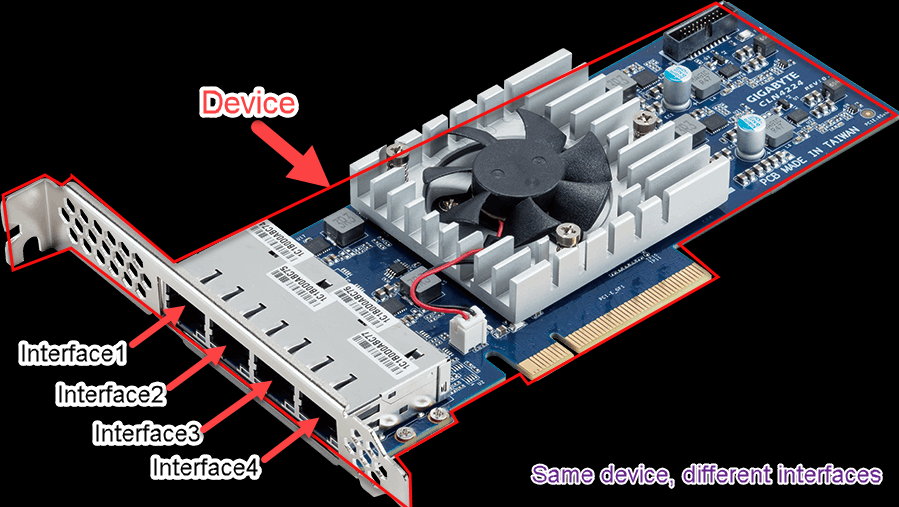
An interface, in this context, can be considered as the hole you plug a network cable into. But it can slightly different with a wireless card.
The Loopback interface
The loopback device is a special, virtual network interface (can be considered as a software loopback interface of the network card and does not require a physical connection to any network) that a computer uses to communicate with itself. It is used mainly for diagnostics and troubleshooting, and to connect to servers running on the local machine.
The purpose of Loopback
When a network interface is disconnected--for example, when an Ethernet port is unplugged or Wi-Fi is turned off or not associated with an access point--no communication on that interface is possible, not even communication between your computer and itself. The loopback interface does not represent any actual hardware, but exists so applications running on your computer can always connect to servers on the same machine.
This is important for troubleshooting (it can be compared to looking in a mirror). The loopback device is sometimes explained as purely a diagnostic tool. But it is also helpful when a server offering a resource you need is running on your own machine.
For example, if you run a web server, you have all your web documents and could examine them file by file. You may be able to load the files in your browser too, though with server-side active content, it won't work the way it does when someone accesses it normally.
So if you want to experience the same site others do, the best course is usually to connect to your own server. The loopback interface facilitates that.
The loopback interface is being associated to a special IP address 127.0.0.1 which is reserved.
Further reading
https://tldp.org/LDP/nag/node66.html
How to display available Network interfaces in a Linux system
Several CLI commands can be used to display the interfaces/NIC on a Linux system.
the ip command
The ip command is part of the iproute2 package.
$ ip link show
1: lo: <LOOPBACK,UP,LOWER_UP> mtu 65536 qdisc noqueue state UNKNOWN mode DEFAULT group default qlen 1000
    link/loopback 00:00:00:00:00:00 brd 00:00:00:00:00:00
2: eno2: <BROADCAST,MULTICAST,UP,LOWER_UP> mtu 1500 qdisc pfifo_fast state UP mode DEFAULT group default qlen 1000
    link/ether a4:bb:6d:63:3b:05 brd ff:ff:ff:ff:ff:ff
    altname enp0s31f6
3: wlo1: <BROADCAST,MULTICAST,UP,LOWER_UP> mtu 1500 qdisc noqueue state UP mode DORMANT group default qlen 1000
    link/ether 50:2f:9b:05:59:33 brd ff:ff:ff:ff:ff:ff
    altname wlp0s20f3
The system being used has 2 network interfaces, eno2 and wlo1, one is an Ethernet network interface while the latter is a Wireless network connection. lo is the Loopback interface.
the nmcli command
$ nmcli device status
DEVICE        TYPE      STATE                   CONNECTION
eno2          ethernet  connected               Wired connection 1
wlo1          wifi      connected               Bureau
lo            loopback  unmanaged
$ nmcli connection show
NAME                UUID                                  TYPE      DEVICE
Wired connection 1  42869826-f114-4807-b397-be117b25520b  ethernet  eno2
Bureau              1fba16be-189d-4dcc-9753-9dd54bb7178c  wifi      wlo1
the ifconfig command
$ /sbin/ifconfig -a
eno2: flags=4163<UP,BROADCAST,RUNNING,MULTICAST>  mtu 1500
        inet 192.168.2.115  netmask 255.255.255.0  broadcast 192.168.2.255
        inet6 fd74:22bb:bd65:f200:a6bb:6dff:fe63:3b05  prefixlen 64  scopeid 0x0<global>
        inet6 fd74:22bb:bd65:f200:ce26:cd0b:9a3b:7c32  prefixlen 64  scopeid 0x0<global>
        inet6 fe80::a6bb:6dff:fe63:3b05  prefixlen 64  scopeid 0x20<link>
        ether a4:bb:6d:63:3b:05  txqueuelen 1000  (Ethernet)
        RX packets 5664093  bytes 4434832045 (4.1 GiB)
        RX errors 0  dropped 16513  overruns 0  frame 0
        TX packets 4196735  bytes 1101677938 (1.0 GiB)
        TX errors 0  dropped 0 overruns 0  carrier 0  collisions 0
        device interrupt 20  memory 0xa2200000-a2220000

lo: flags=73<UP,LOOPBACK,RUNNING>  mtu 65536
        inet 127.0.0.1  netmask 255.0.0.0
        inet6 ::1  prefixlen 128  scopeid 0x10<host>
        loop  txqueuelen 1000  (Local Loopback)
        RX packets 1955  bytes 200605 (195.9 KiB)
        RX errors 0  dropped 0  overruns 0  frame 0
        TX packets 1955  bytes 200605 (195.9 KiB)
        TX errors 0  dropped 0 overruns 0  carrier 0  collisions 0

wlo1: flags=4163<UP,BROADCAST,RUNNING,MULTICAST>  mtu 1500
        inet 192.168.1.63  netmask 255.255.255.0  broadcast 192.168.1.255
        inet6 fe80::7bff:6cd8:7e5b:e692  prefixlen 64  scopeid 0x20<link>
        ether 50:2f:9b:05:59:33  txqueuelen 1000  (Ethernet)
        RX packets 1282  bytes 97758 (95.4 KiB)
        RX errors 0  dropped 207  overruns 0  frame 0
        TX packets 249  bytes 34567 (33.7 KiB)
        TX errors 0  dropped 0 overruns 0  carrier 0  collisions 0
Creating, listing and deleting Network Namespaces
Creating a network namespace is actually quite easy. Just use this command:
# ip netns add <new namespace name>
For example, let’s say one wants to create a new network namespace called “newnets”. The following command should do the trick:
# ip netns add newnets
This command will create a new network namespace called ns1. When the namespace is created, the ip command adds a bind mount point for it under /var/run/netns. This allows the namespace to persist even if there’s no process attached to it. To list the namespaces available in the system:
To verify that the network namespace has been created, this command should make it:
$ ls -la /var/run/netns
total 0
drwxr-xr-x  2 root root  60 Apr 24 11:32 .
drwxr-xr-x 36 root root 940 Apr 24 10:17 ..
-r--r--r--  1 root root   0 Apr 24 11:32 newnets
or
 tree /var/run/netns/
/var/run/netns/
└── newnets

0 directories, 1 file
Note that the tree command is part of the tree package one can install with apt-get install tree.
or
$ ip netns list
newnets
or
$ ip netns
newnets
One should see the new network namespace listed there, ready for use.
To delete the newly created network namespace:
# ip netns delete newnets
Using the new network namespace
As previously said, a network namespace contains its own network resources: interfaces, routing tables, etc.
But there is no loopback by default within that network namespace:
# ip netns exec newnets ping 127.0.0.1
ping: connect: Network is unreachable
Let us add a loopback interface to newnets:
# ip netns exec newnets ip link set dev lo up
or another way:
# ip -n newnets link set dev lo up
# ip netns exec newnets ip link
1: lo: <LOOPBACK,UP,LOWER_UP> mtu 65536 qdisc noqueue state UNKNOWN mode DEFAULT group default qlen 1000
    link/loopback 00:00:00:00:00:00 brd 00:00:00:00:00:00
or another way:
# ip -n newnets link
1: lo: <LOOPBACK,UP,LOWER_UP> mtu 65536 qdisc noqueue state UNKNOWN mode DEFAULT group default qlen 1000
    link/loopback 00:00:00:00:00:00 brd 00:00:00:00:00:00
and then:
# ip netns exec newnets ping 127.0.0.1
PING 127.0.0.1 (127.0.0.1) 56(84) bytes of data.
64 bytes from 127.0.0.1: icmp_seq=1 ttl=64 time=0.014 ms
64 bytes from 127.0.0.1: icmp_seq=2 ttl=64 time=0.050 ms
64 bytes from 127.0.0.1: icmp_seq=3 ttl=64 time=0.051 ms
...
--- 127.0.0.1 ping statistics ---
3 packets transmitted, 3 received, 0% packet loss, time 2055ms
rtt min/avg/max/mdev = 0.014/0.038/0.051/0.017 ms
As highlighted earlier, a network namespace has its own routing table:
$ sudo ip netns exec newnets ip route show
which does not return anything as not routing table has been added yet.
Using iw to Manage Wireless LAN in Linux
A wireless LAN (WiFi) interface is configured in a slightly different manner than a wired LAN (Ethernet) interface in Linux command line.
iw is the analogous command to ip
$ iw
Usage:  iw [options] command
Options:
        --debug         enable netlink debugging
        --version       show version (5.9)
Commands:
        dev <devname> ap stop
        dev <devname> ap start
        phy <phyname> coalesce show
        phy <phyname> coalesce disable
        phy <phyname> coalesce enable <config-file>
        dev <devname> auth <SSID> <bssid> <type:open|shared> <freq in MHz> [key 0:abcde d:1:6162636465]
        dev <devname> connect [-w] <SSID> [<freq in MHz>] [<bssid>] [key 0:abcde d:1:6162636465] [mfp:req/opt/no]
        dev <devname> disconnect
        dev <devname> cqm rssi <threshold|off> [<hysteresis>]
        event [-t|-r] [-f]
        dev <devname> ftm start_responder [lci=<lci buffer in hex>] [civic=<civic buffer in hex>]
        dev <devname> ftm get_stats
        phy <phyname> hwsim wakequeues
        phy <phyname> hwsim stopqueues
        phy <phyname> hwsim setps <value>
        phy <phyname> hwsim getps
        dev <devname> ibss join <SSID> <freq in MHz> [NOHT|HT20|HT40+|HT40-|5MHz|10MHz|80MHz] [fixed-freq] [<fixed bssid>] [beacon-interval <TU>] [basic-rates <rate in Mbps,rate2,...>] [mcast-rate <rate in Mbps>] [key d:0:abcde]
        dev <devname> ibss leave
        features
        commands
        phy
        list
        phy <phyname> info
        dev <devname> switch channel <channel> [NOHT|HT20|HT40+|HT40-|5MHz|10MHz|80MHz] [beacons <count>] [block-tx]
        dev <devname> switch freq <freq> [NOHT|HT20|HT40+|HT40-|5MHz|10MHz|80MHz] [beacons <count>] [block-tx]
        dev <devname> switch freq <control freq> [5|10|20|40|80|80+80|160] [<center1_freq> [<center2_freq>]] [beacons <count>] [block-tx]
        dev
        dev <devname> info
        dev <devname> del
        dev <devname> interface add <name> type <type> [mesh_id <meshid>] [4addr on|off] [flags <flag>*] [addr <mac-addr>]
        phy <phyname> interface add <name> type <type> [mesh_id <meshid>] [4addr on|off] [flags <flag>*] [addr <mac-addr>]
        help [command]
        dev <devname> link
        dev <devname> measurement ftm_request <config-file> [timeout=<seconds>] [randomise[=<addr>/<mask>]]
        dev <devname> mesh leave
        dev <devname> mesh join <mesh ID> [[freq <freq in MHz> <NOHT|HT20|HT40+|HT40-|80MHz>] [basic-rates <rate in Mbps,rate2,...>]], [mcast-rate <rate in Mbps>] [beacon-interval <time in TUs>] [dtim-period <value>] [vendor_sync on|off] [<param>=<value>]*
        dev <devname> mgmt dump frame <type as hex ab> <pattern as hex ab:cd:..> [frame <type> <pattern>]* [count <frames>]
        dev <devname> mpath dump
        dev <devname> mpath set <destination MAC address> next_hop <next hop MAC address>
        dev <devname> mpath new <destination MAC address> next_hop <next hop MAC address>
        dev <devname> mpath del <MAC address>
        dev <devname> mpath get <MAC address>
        dev <devname> mpath probe <destination MAC address> frame <frame>
        dev <devname> mpp dump
        dev <devname> mpp get <MAC address>
        wdev <idx> nan add_func type <publish|subscribe|followup> [active] [solicited] [unsolicited] [bcast] [close_range] name <name> [info <info>] [flw_up_id <id> flw_up_req_id <id> flw_up_dest <mac>] [ttl <ttl>] [srf <include|exclude> <bf|list> [bf_idx] [bf_len] <mac1;mac2...>] [rx_filter <str1:str2...>] [tx_filter <str1:str2...>]
        wdev <idx> nan rm_func cookie <cookie>
        wdev <idx> nan config [pref <pref>] [bands [2GHz] [5GHz]]
        wdev <idx> nan stop
        wdev <idx> nan start pref <pref> [bands [2GHz] [5GHz]]
        dev <devname> ocb leave
        dev <devname> ocb join <freq in MHz> <5MHz|10MHz>
        dev <devname> offchannel <freq> <duration>
        wdev <idx> p2p stop
        wdev <idx> p2p start
        dev <devname> cac channel <channel> [NOHT|HT20|HT40+|HT40-|5MHz|10MHz|80MHz]
        dev <devname> cac freq <freq> [NOHT|HT20|HT40+|HT40-|5MHz|10MHz|80MHz]
        dev <devname> cac freq <control freq> [5|10|20|40|80|80+80|160] [<center1_freq> [<center2_freq>]]
        dev <devname> cac trigger channel <channel> [NOHT|HT20|HT40+|HT40-|5MHz|10MHz|80MHz]
        dev <devname> cac trigger freq <frequency> [NOHT|HT20|HT40+|HT40-|5MHz|10MHz|80MHz]
        dev <devname> cac trigger freq <frequency> [5|10|20|40|80|80+80|160] [<center1_freq> [<center2_freq>]]
        phy <phyname> channels
        reg reload
        phy <phyname> reg get
        reg get
        reg set <ISO/IEC 3166-1 alpha2>
        dev <devname> roc start <freq> <time in ms>
        dev <devname> scan [-u] [freq <freq>*] [duration <dur>] [ies <hex as 00:11:..>] [meshid <meshid>] [lowpri,flush,ap-force,duration-mandatory] [randomise[=<addr>/<mask>]] [ssid <ssid>*|passive]
        dev <devname> scan sched_stop
        dev <devname> scan sched_start [interval <in_msecs> | scan_plans [<interval_secs:iterations>*] <interval_secs>] [delay <in_secs>] [freqs <freq>+] [matches [ssid <ssid>]+]] [active [ssid <ssid>]+|passive] [randomise[=<addr>/<mask>]]
        dev <devname> scan abort
        dev <devname> scan trigger [freq <freq>*] [duration <dur>] [ies <hex as 00:11:..>] [meshid <meshid>] [lowpri,flush,ap-force,duration-mandatory] [randomise[=<addr>/<mask>]] [ssid <ssid>*|passive]
        dev <devname> scan dump [-u]
        dev <devname> set bitrates [legacy-<2.4|5> <legacy rate in Mbps>*] [ht-mcs-<2.4|5> <MCS index>*] [vht-mcs-<2.4|5> [he-mcs-<2.4|5|6> <NSS:MCSx,MCSy... | NSS:MCSx-MCSy>*] [sgi-2.4|lgi-2.4] [sgi-5|lgi-5] [he-gi-<2.4|5|6> <0.8|1.6|3.2>] [he-ltf-<2.4|5|6> <1|2|4>]
        dev <devname> set tidconf [peer <MAC address>] tids <mask> [override] [sretry <num>] [lretry <num>] [ampdu [on|off]] [amsdu [on|off]] [noack [on|off]] [rtscts [on|off]][bitrates <type [auto|fixed|limit]> [legacy-<2.4|5> <legacy rate in Mbps>*] [ht-mcs-<2.4|5> <MCS index>*] [vht-mcs-<2.4|5> <NSS:MCSx,MCSy... | NSS:MCSx-MCSy>*] [sgi-2.4|lgi-2.4] [sgi-5|lgi-5]]
        dev <devname> set mcast_rate <rate in Mbps>
        dev <devname> set peer <MAC address>
        dev <devname> set noack_map <map>
        dev <devname> set 4addr <on|off>
        dev <devname> set type <type>
        dev <devname> set meshid <meshid>
        dev <devname> set monitor <flag>*
        dev <devname> set mesh_param <param>=<value> [<param>=<value>]*
        phy <phyname> set txq limit <packets> | memory_limit <bytes> | quantum <bytes>
        phy <phyname> set antenna <bitmap> | all | <tx bitmap> <rx bitmap>
        dev <devname> set txpower <auto|fixed|limit> [<tx power in mBm>]
        phy <phyname> set txpower <auto|fixed|limit> [<tx power in mBm>]
        phy <phyname> set distance <auto|distance>
        phy <phyname> set coverage <coverage class>
        phy <phyname> set netns { <pid> | name <nsname> }
        phy <phyname> set retry [short <limit>] [long <limit>]
        phy <phyname> set rts <rts threshold|off>
        phy <phyname> set frag <fragmentation threshold|off>
        dev <devname> set channel <channel> [NOHT|HT20|HT40+|HT40-|5MHz|10MHz|80MHz]
        phy <phyname> set channel <channel> [NOHT|HT20|HT40+|HT40-|5MHz|10MHz|80MHz]
        dev <devname> set freq <freq> [NOHT|HT20|HT40+|HT40-|5MHz|10MHz|80MHz]
        dev <devname> set freq <control freq> [5|10|20|40|80|80+80|160] [<center1_freq> [<center2_freq>]]
        phy <phyname> set freq <freq> [NOHT|HT20|HT40+|HT40-|5MHz|10MHz|80MHz]
        phy <phyname> set freq <control freq> [5|10|20|40|80|80+80|160] [<center1_freq> [<center2_freq>]]
        phy <phyname> set name <new name>
        dev <devname> set power_save <on|off>
        dev <devname> get mesh_param [<param>]
        phy <phyname> get txq
        dev <devname> get power_save <param>
        dev <devname> station dump [-v]
        dev <devname> station set <MAC address> txpwr <auto|limit> [<tx power dBm>]
        dev <devname> station set <MAC address> airtime_weight <weight>
        dev <devname> station set <MAC address> mesh_power_mode <active|light|deep>
        dev <devname> station set <MAC address> vlan <ifindex>
        dev <devname> station set <MAC address> plink_action <open|block>
        dev <devname> station del <MAC address> [subtype <subtype>] [reason-code <code>]
        dev <devname> station get <MAC address>
        dev <devname> survey dump
        dev <devname> vendor recvbin <oui> <subcmd> <filename|-|hex data>
        dev <devname> vendor recv <oui> <subcmd> <filename|-|hex data>
        dev <devname> vendor send <oui> <subcmd> <filename|-|hex data>
        phy <phyname> wowlan show
        phy <phyname> wowlan disable
        phy <phyname> wowlan enable [any] [disconnect] [magic-packet] [gtk-rekey-failure] [eap-identity-request] [4way-handshake] [rfkill-release] [net-detect [interval <in_msecs> | scan_plans [<interval_secs:iterations>*] <interval_secs>] [delay <in_secs>] [freqs <freq>+] [matches [ssid <ssid>]+]] [active [ssid <ssid>]+|passive] [randomise[=<addr>/<mask>]]] [tcp <config-file>] [patterns [offset1+]<pattern1> ...]

Commands that use the netdev ('dev') can also be given the
'wdev' instead to identify the device.

You can omit the 'phy' or 'dev' if the identification is unique,
e.g. "iw wlan0 info" or "iw phy0 info". (Don't when scripting.)

Do NOT screenscrape this tool, we don't consider its output stable.
Using Network namespaces as a regular user rather than root: slirp4netns: User-mode networking for unprivileged network namespaces
Introduction
In linux you can create network namespaces, using the ip command. But you need to be root to run that command. However you can still create network namespaces as a regular user using unshare -rUn. With this command, the new network namespace will be owned by a restricted user namespace.
https://github.com/rootless-containers/slirp4netns
Starting with Linux 3.8, unprivileged users can create network_namespaces(7) along with user_namespaces(7). However, unprivileged network namespaces had not been very useful, because creating veth(4) pairs across the host and network namespaces still requires the root privileges.
slirp4netns allows connecting a network namespace to the Internet in a completely unprivileged way, by connecting a TAP device in a network namespace to the usermode TCP/IP stack ("slirp").
libslirp: A general purpose TCP-IP emulator used by virtual machine hypervisors to provide virtual networking services.
libslirp is a user-mode networking library used by virtual machines, containers or various tools.
https://gitlab.freedesktop.org/slirp/libslirp
Installing through the Debian packaging system:
$ sudo apt-get install slirp4netns